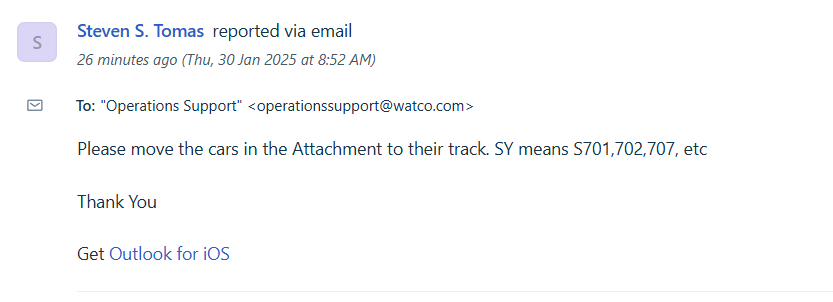
Crews will email an attachment with a list of cars and where they would like them moved.
Cars moving out on/with the same L/E status MUST be moved over to CS to be checked or rebilled
Please keep in mind, if the cars do not show RLO you will need to email the customer and request that they release them through DOCK before we apply the moves.
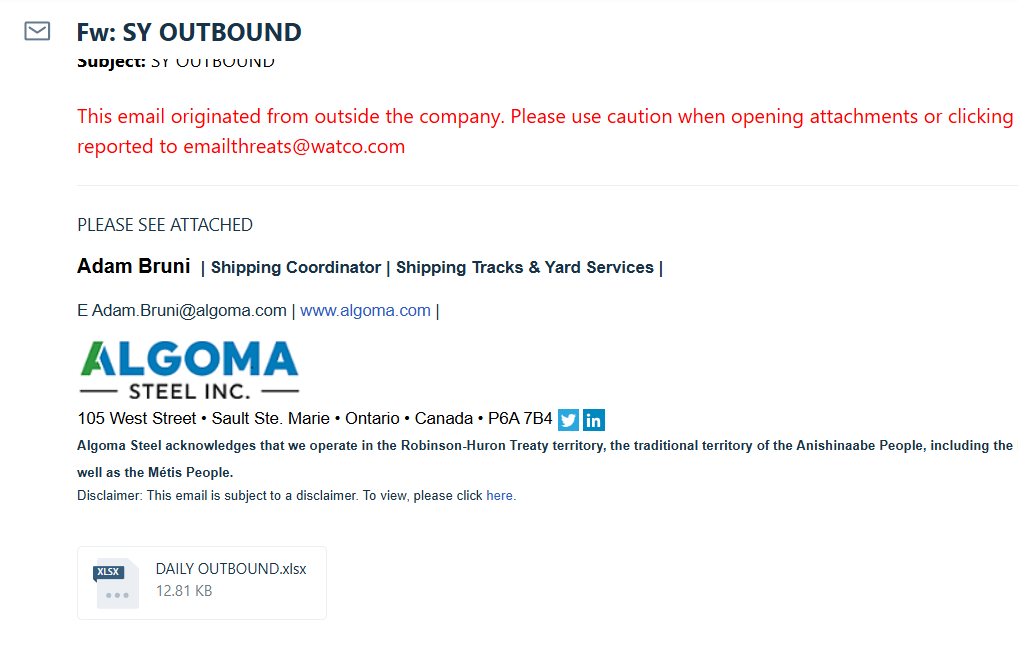
STEP 1: Open the Excel attachment. You will want to highlight the railcar ID's and (Ctrl C), this will copy them.
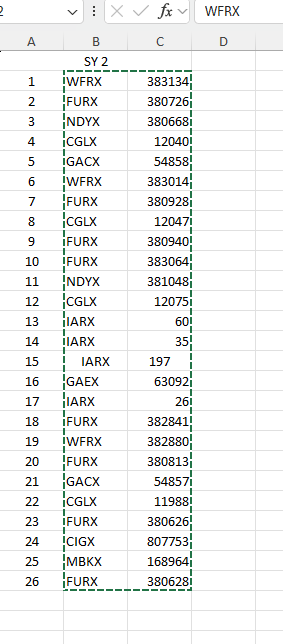 These cars have SY 2 above them. That is the track in Sault Ste Marie that they would like these cars moved to.
STEP 2: Sign into ACR. Select Equipment - Locate - Bulk Sheet
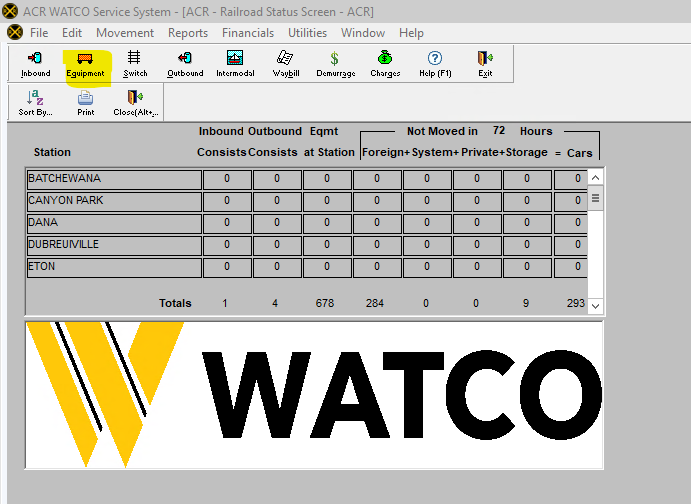
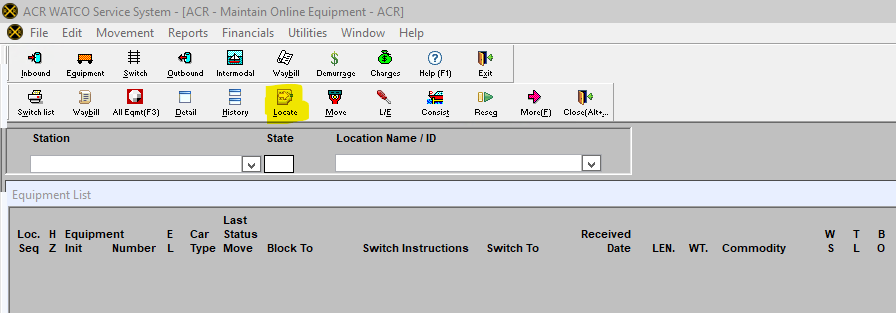
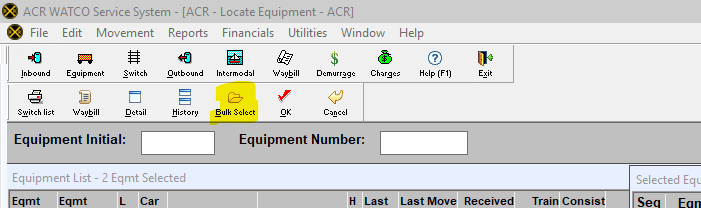
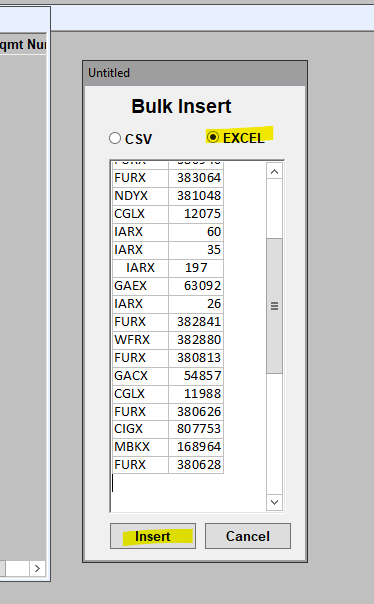
STEP 3: (Ctrl V) will past your copied cars into the bulk sheet Insert. Make sure to have the Excel selected. Once pasted, select Insert.
STEP 4: Select SWITCH Icon. Now that your cars are in a switch, highlight them all and select the MOVE Icon.
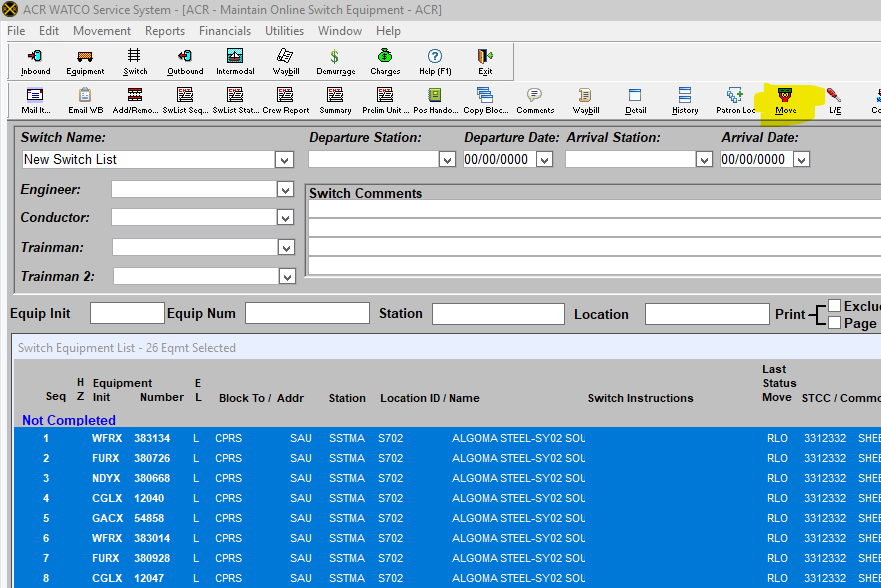
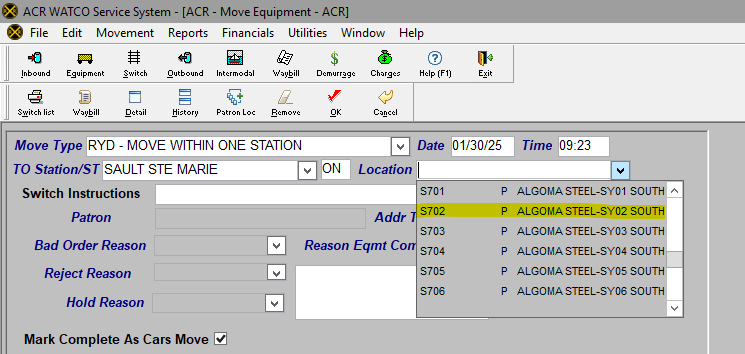
STEP 5: Select the track that the crews are requesting to move these to. They like to shorthand their request sheets, so pay close attention to the track number and name. They wanted these in SY2 so SY02 track S702 is the correct one.
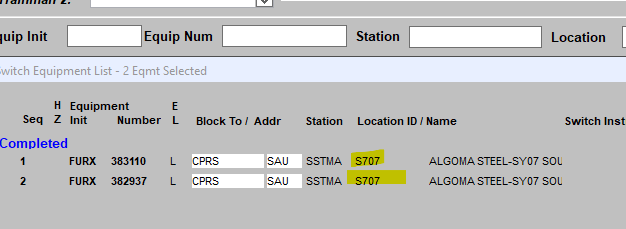
STEP 6: Once move is complete it should update in your switch. Here are the other two they requested to be moved. They now show in S707 or in other words SY7 as requested.